WinRupees Withdrawal Completed but JazzCash/Easypaisa Balance Missing? What to Check
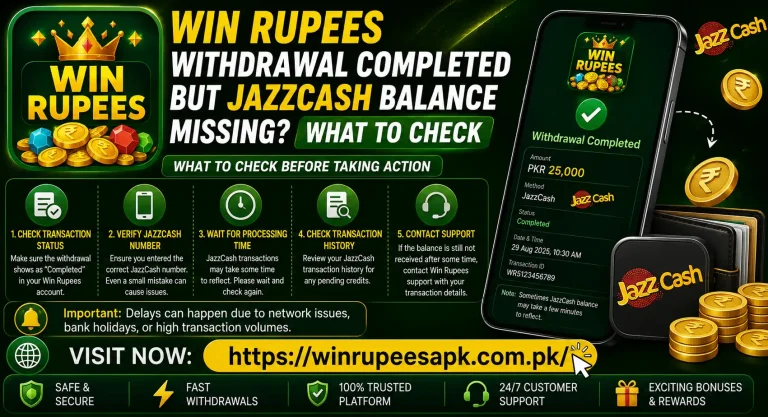
WinRupees shows the withdrawal as Completed, but the expected amount is not visible in JazzCash or Easypaisa. At this point, submitting another withdrawal or changing the receiving number can make the issue more confusing. The useful next step is to trace the completed request from the WinRupees record to the receiving wallet statement.
A completed label may mean that WinRupees finished its part of the request. It does not by itself prove that the money reached the correct mobile wallet. The receiving number, payment channel, transaction reference and wallet account status still need to match.
Quick Answer: Why Is a Completed WinRupees Withdrawal Missing?
The most common possibilities are:
- The JazzCash or Easypaisa app has not refreshed.
- The withdrawal was sent to a different saved number.
- The entered number contained a digit or network mistake.
- The transaction is completed in WinRupees download but delayed at the payment channel.
- The wallet credited the amount without showing a notification.
- The receiving account has a restriction or verification issue.
- The payment was reversed after the completed status appeared.
- An older or secondary wallet account is being checked.
- The WinRupees record lacks a usable payment reference.
- The completed label is outdated because of an app-sync problem.
Do not depend on the SMS notification alone. Open the JazzCash or Easypaisa transaction statement and compare it with the completed withdrawal record.
Understand What “Completed” Can Mean
Withdrawal processing involves more than one record. WinRupees has an internal request, while JazzCash or Easypaisa maintains a separate receiving transaction.
| Record | What it confirms | What it does not confirm alone |
| WinRupees completed status | The request was marked finished inside the account | That the correct wallet received the money |
| WinRupees reference or order ID | The withdrawal can be identified in the platform records | That the payment provider accepted the transfer |
| JazzCash/Easypaisa credit entry | The receiving wallet recorded the payment | That the app notification appeared |
| SMS notification | A message was generated for the transaction | That the current wallet balance has refreshed |
The strongest evidence is a matching trail: completed WinRupees order, correct receiving number and corresponding wallet credit or provider reference.
1. Open the Completed Withdrawal Record
Start with the exact request instead of the main wallet balance. Open withdrawal history and select the completed entry.
Record the following details:
- Withdrawal amount
- Date and time
- Order or request ID
- Transaction or payout reference, if displayed
- Selected payment method
- Masked receiving number
- Completion time
- Any fee or final paid amount shown
Take a screenshot with private account details hidden. Do not crop out the status, time or reference because these fields help identify the request.
If the completed record has no reference at all, note that fact. It becomes an important question for WinRupees support: which provider transaction corresponds with this completed order?
2. Confirm the Receiving Mobile Number
A withdrawal can be completed to the number saved at the time of submission, even if you later changed the wallet number in your profile.
Compare the masked digits in the completed record with:
- Your active JazzCash or Easypaisa number
- The number currently bound to WinRupees
- Any older number previously used
- The SIM installed in another phone
- The payment method selected for this request
Check each digit carefully. Do not assume that the registered WinRupees login number and withdrawal-wallet number are automatically the same.
If the completed record points to an old or incorrect number, do not edit the current payment details and claim that the original order used them. Save the original record and report the mismatch honestly. Changing a profile field cannot redirect a transfer that was already processed.
3. Make Sure You Are Checking the Correct Wallet
JazzCash and Easypaisa are separate services. A withdrawal submitted to one will not appear in the other, even if both accounts use the same identity details.
Verify:
- Which wallet was selected in WinRupees
- Which app you opened
- Which number is signed in
- Whether the active SIM belongs to that account
- Whether you have multiple JazzCash or Easypaisa profiles or old numbers
On a dual-SIM phone, check which SIM is associated with the receiving wallet. The mobile data SIM does not determine where the payment goes.
If another family member’s number was previously bound, do not assume the balance should reach your personal wallet. The receiving number in the completed order is the relevant one.
4. Check the Wallet Statement, Not Only the Balance
The wallet home screen may show an outdated balance. Open the transaction history or statement inside JazzCash or Easypaisa and review incoming entries around the completion time.
Look for:
- Incoming payment or transfer
- Merchant or partner credit
- Adjustment entry
- Reversal
- Failed or returned transaction
- The same amount under a different description
Refresh the wallet once on a stable connection. If the statement shows a credit but the home-screen balance remains unchanged, sign out only if you know the correct login method and can receive any required verification code.
Do not reinstall the wallet app before saving its transaction records. Reinstallation cannot create a provider-side credit, and losing access to the registered SIM may add another problem.
5. Check SMS and App Notifications Carefully
A missing notification does not always mean a missing payment. Do Not Disturb, disabled notification permission or an SMS filter can hide the alert.
Open:
- The wallet transaction statement
- The normal SMS inbox
- Spam or blocked messages
- Archived conversations
- The wallet app’s notification centre
Search by the withdrawal amount, date or words such as “received,” “credit” and “transaction.”
Treat an SMS as supporting evidence, not the final record. Fraudulent messages can imitate payment alerts. Confirm the credit inside the wallet app or through the payment provider’s normal account-access method.
6. Compare the Completion Time With the Provider Record
WinRupees and the receiving wallet may display different timestamps. One can show when the withdrawal was approved, while the other records when the transfer reached the payment channel.
When comparing records:
- Allow for different timestamp formats.
- Check entries before and after the displayed completion time.
- Confirm that the date did not change around midnight.
- Enable automatic date, time and time zone on the phone.
Do not manually change the device clock. It will not speed up a transfer and may make your screenshots inconsistent.
Avoid publishing a fixed delay such as “all completed withdrawals arrive within a certain number of minutes.” Processing conditions can vary, and the most reliable instruction is the status shown in the account or the response tied to the specific reference.
7. Look for a Reversal or Returned Payment
A payment can receive a completed status and later be reversed or returned if the receiving details fail a check. The original WinRupees record may not update immediately.
Inspect:
- WinRupees wallet adjustments
- Withdrawal history
- Returned or rejected records
- JazzCash/Easypaisa statement
- Account messages or notifications
If the amount has returned to the WinRupees withdrawable balance, do not report it as permanently missing. Record the reversal and read any reason before submitting a corrected request.
If the amount is absent from both the WinRupees balance and receiving wallet, the order and payout references become essential for tracing it.
8. Check the Receiving Wallet’s Account Status
A wallet restriction can affect incoming transfers or access to the credited balance. Open JazzCash or Easypaisa through the normal account route and check for:
- Verification prompts
- Account restrictions
- Transaction limits displayed in the wallet
- An inactive or replaced SIM
- A recently changed account status
- Temporary service notices
Do not assume specific wallet limits from an old article. Check the current information shown by the provider for your account type.
If the wallet is restricted, contact the payment provider using its regular support route. WinRupees may be able to provide a payout reference, but it cannot normally resolve an external wallet-verification issue.
9. Refresh WinRupees and Check for an Adjustment
The completed label itself may be cached. Close WinRupees, remove it from recent applications and reopen one clean session on a stable connection.
Then compare:
- Withdrawable balance
- Completed withdrawal amount
- Wallet-adjustment history
- Internal account messages
- Any returned or reversed entry
If a browser version is normally available to you, compare it separately. Do not keep the account open in multiple browser tabs and phones at the same time because older sessions may show conflicting records.
Clearing the WinRupees app cache may refresh the display. Avoid clearing all app data until the account number, password, order ID and screenshots have been saved.
10. Do Not Submit the Same Withdrawal Again
A second request does not repair the first transfer. It may withdraw another amount if funds remain available, leaving you with two orders to trace.
Until the completed transaction is identified:
- Do not submit another withdrawal for testing.
- Do not change the receiving number repeatedly.
- Do not create another WinRupees account.
- Do not ask someone else to receive the next payment.
- Do not cancel records that already show completed.
- Do not make a deposit to “unlock” the payout.
Keep one clear evidence trail for the original request.
11. Contact WinRupees Support First for the Payout Reference
If WinRupees says completed but no corresponding credit appears in the wallet statement, ask support to identify the outgoing payment.
Provide:
- Registered WinRupees number with most digits hidden
- Withdrawal order ID
- Amount
- Submission and completion times
- Selected payment method
- Masked receiving number
- Screenshot of the completed status
- Screenshot of the wallet statement around that time
Ask these specific questions:
- Which receiving number was used for this order?
- What payout or provider transaction reference was generated?
- Was the transfer accepted, returned or reversed?
- Is any wallet adjustment pending on the WinRupees account?
Do not accept a request to share your OTP, withdrawal password, wallet PIN or complete login credentials. Those secrets are not required to identify an existing transaction.
12. Contact JazzCash or Easypaisa With the Correct Reference
If WinRupees provides a valid provider reference and confirms the destination number, contact the selected wallet service through its normal support option.
Share only the information required to trace the incoming transfer:
- Provider transaction reference
- Amount
- Date and approximate time
- Receiving number with appropriate masking
- Sender or merchant information shown in the record
- Description of the missing credit
Explain that the sender marks the transfer completed but no matching credit appears in the receiving statement.
Do not send WinRupees passwords or game-account security codes to the wallet provider. Likewise, do not send a JazzCash or Easypaisa PIN to WinRupees support.
13. Use One Support Case and Keep a Timeline
Repeated messages with different details can slow down an investigation. Keep a simple timeline:
| Event | Information to record |
| Withdrawal submitted | Date, time, amount and order ID |
| Status changed to completed | Completion time and screenshot |
| Wallet checked | Wallet name, number and statement period |
| WinRupees contacted | Case ID and response |
| Payment provider contacted | Case ID and response |
| Adjustment or credit received | Date, amount and final reference |
Reply within the same support case where possible. Keep screenshots unedited except for masking private data.
Sample Support Message
You can adapt this message:
My WinRupees withdrawal shows Completed, but no matching credit appears in my JazzCash/Easypaisa statement. The withdrawal amount is [amount], the order ID is [ID], and it was marked completed at [date and time]. The masked receiving number shown is [number]. Please confirm the provider transaction reference and whether the payment was accepted, returned or reversed.
Do not place an OTP, password or payment PIN in the message.
What Not to Do
- Do not pay an “unlock” or “release” fee to an individual.
- Do not share an OTP, login password or withdrawal password.
- Do not give anyone remote access to your phone.
- Do not install a modified WinRupees or wallet APK.
- Do not send the same withdrawal repeatedly.
- Do not delete the completed order or wallet statement.
- Do not publicly post an unmasked payment receipt.
- Do not assume a social-media account represents official support.
A genuine investigation should focus on the order ID, destination and provider reference—not on obtaining control of your account.
Quick Checklist for a Missing Wallet Credit
Confirm that:
- The withdrawal genuinely says completed.
- The exact completed record has been opened.
- The order and payout references have been saved.
- The receiving number is correct.
- The selected wallet matches the app being checked.
- The correct wallet account is signed in.
- Transaction history was checked, not only the balance.
- SMS, spam and in-app notifications were reviewed.
- Returned and reversed records were checked.
- The WinRupees balance was checked for an adjustment.
- No duplicate withdrawal was submitted.
- WinRupees support was asked for the provider reference.
- JazzCash or Easypaisa was contacted only when useful reference details were available.
This sequence establishes whether the issue sits with the WinRupees record, payout channel or receiving wallet.
Frequently Asked Questions
Final Takeaway
When a WinRupees withdrawal is completed but the JazzCash or Easypaisa balance is missing, begin with the completed order. Confirm the destination number and selected wallet, then search the receiving account’s transaction statement for a matching credit, adjustment or reversal.
If no record exists, ask WinRupees for the provider transaction reference before escalating the case to JazzCash or Easypaisa. Do not submit another withdrawal, pay an unlock fee or share account-security codes while the original transfer is being traced.
Responsible-play note: WinRupees may involve real-money gaming. Use it only if you meet applicable age and local eligibility requirements. Keep gaming funds separate from essential expenses, never borrow money to play and do not treat withdrawals or bonuses as guaranteed income.