Win Rupees OTP Not Received? What to Check Before Requesting Another Code
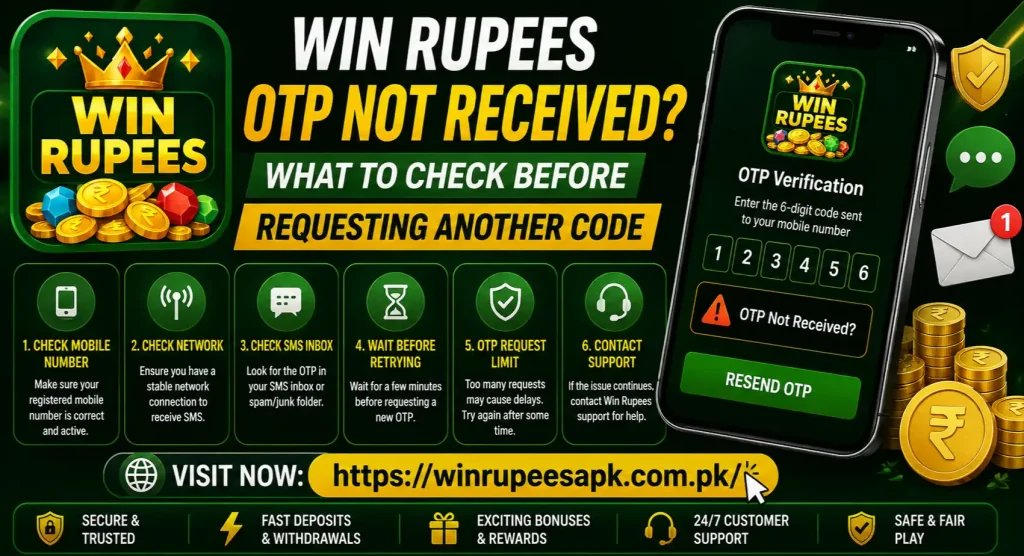
If your Win Rupees OTP is not received, do not keep pressing the resend button. First confirm the registered phone number, SIM signal and SMS inbox, then wait for the on-screen timer to finish. Repeated requests may make an earlier code invalid or temporarily delay further attempts.
The missing code may not be a Win Rupees app problem. It can also be caused by a weak mobile signal, a blocked sender, an SMS filter, the wrong SIM, an old code arriving late or a temporary issue at the mobile network. A few organised checks are safer than requesting several codes one after another.
Quick answer: Check that the registered SIM is active in the phone, turn Airplane mode on and off, open the SMS app’s Spam & blocked folder, use automatic date and time, and wait for the resend countdown. Request one fresh OTP only after the previous attempt has expired.
What an OTP Does
An OTP is a one-time password or verification code. Win Rupees game may use a code to confirm that the person trying to register, log in, recover an account or complete a sensitive action can access the registered number.
An OTP is normally valid for a limited session. The exact length and expiry can change, so follow the message and timer shown on the current screen rather than an old screenshot or blog post.
Every code should be treated like a temporary password. Do not send it to a person claiming to be an agent, moderator or account helper. If someone can see the OTP, they may be able to approve an action as though they were you.
Identify Which OTP Is Missing
Before changing settings, check who was supposed to send the code. This determines where the problem should be reported.
| Missing code | Likely sender | What to check |
| Registration or login OTP | Win Rupees account system | Registered number, app, SMS delivery and account status |
| Password-reset OTP | Win Rupees account system | Correct account number and recovery screen |
| Easypaisa or JazzCash OTP | Mobile-wallet provider | Wallet app, registered wallet SIM and provider support |
| Bank or card verification code | Bank or payment processor | Bank-registered number and bank support |
| SIM verification message | Mobile network | Signal, SIM status and carrier support |
Do not ask Win Rupees support to reveal a wallet or bank OTP. A payment provider’s code should be handled through that provider, and no support agent should ask you to forward the code.
Before Requesting Another Win Rupees OTP
Confirm the Phone Number on the Screen
Look at the masked number displayed on the verification page. Check the visible first and last digits carefully. A single wrong digit sends the OTP to someone else or to a number that does not exist.
If the screen asks you to type a number, use the format requested there. Do not add or remove Pakistan’s country code automatically unless the form makes the expected format clear. For example, some forms ask for a local number beginning with 03, while others show +92 separately.
If you no longer have access to the registered SIM, requesting more codes will not solve the problem. Use the available account-recovery or support route instead.
Make Sure the Registered SIM Is Active
The correct SIM should be inserted, enabled and connected to a mobile network. Look for signal bars and try receiving a normal SMS or call.
On a dual-SIM phone, identify which slot contains the registered number. Android’s preferred SIM setting usually affects outgoing calls and messages, but you should still confirm that the receiving SIM has not been disabled in Settings > SIM cards or Mobile network.
If the SIM was recently replaced, reactivated, ported to another network or moved from an old device, ordinary SMS delivery may take time to stabilise. Contact the mobile operator if normal messages are also missing.
Wait for the Current Request to Finish
OTP delivery is not always instant. The app may show a countdown before Resend code becomes available. Let that timer finish and avoid leaving the screen if possible.
If you request another code, the newest code may replace the older one. A late-arriving first code can then show “invalid” even though it was typed correctly. Read the message timestamp and use only the latest code requested for the current session.
There is no benefit in pressing resend many times. It can create a confusing queue of messages and may trigger a temporary request limit.
Refresh the Mobile Signal
Turn Airplane mode on for about 10 seconds, then turn it off. This makes the phone reconnect to the mobile network. You can also restart the phone if the signal bars appear but messages are not arriving.
Wi-Fi alone does not guarantee that an SMS OTP will arrive. Standard SMS normally depends on the mobile SIM and network signal, while the app needs an internet connection to request the code. Both connections may therefore matter.
Check the SMS App Directly
Open the phone’s Messages app rather than relying only on a pop-up notification. Search recent messages for terms related to the code, verification or sender name.
Also look in Spam & blocked. Google Messages allows blocked conversations to be reviewed and unblocked from that section (Google Messages Help). An automated sender can occasionally be filtered even though the message was requested.
Do not disable all spam protection permanently just to receive one code. First inspect the filtered folder and unblock only a sender you can reasonably connect to the OTP request.
Check Notification Settings—but Do Not Stop There
If SMS notifications are disabled, the code may already be in the inbox without appearing on the lock screen. Open Settings > Apps > Messages > Notifications and check the current setting.
Notification permission affects alerts, not necessarily SMS delivery. That is why opening the inbox itself is more useful than repeatedly requesting another code.
Set Date and Time to Automatic
An incorrect phone clock can cause verification sessions and expiry timers to behave unexpectedly. Enable Automatic date and time and Automatic time zone in Android settings.
Google provides these options under Android’s date and time settings (Android Help). Menu names vary by phone, but the settings are usually under System, General management or the Clock app.
After correcting the clock, close Win Rupees, reopen it and make one new OTP request after the previous timer has ended.
Check for Blocked or Filtered SMS
Automated verification messages may come from a short code, alphanumeric sender name or changing number. Review these areas without deleting evidence:
- Spam & blocked conversations
- Blocked-number list
- Archived conversations
- A third-party SMS app’s junk folder
- Security or call-filtering apps
- Phone “Do Not Disturb” notification settings
Google Messages includes spam protection and lets users review its setting under Messages settings > Protection & Safety > Spam protection where available (Google Messages Help). The exact path may differ on Samsung Messages or another default app.
If you recently changed the default SMS app, check both the old and new apps. Avoid clearing all Messages data because doing so may remove locally stored information depending on the device and backup settings.
Test Whether Normal SMS Messages Are Arriving
Ask a trusted person to send a basic text message to the registered number. Do not ask them to send private account information.
The result narrows down the fault:
| Test result | What it may indicate | Next action |
| Normal SMS arrives, OTP does not | Sender, platform or filtering issue | Check spam, wait, then contact relevant support |
| No SMS arrives from anyone | SIM, phone or carrier issue | Restart, check signal and contact mobile operator |
| OTP arrives very late | Network congestion or request queue | Use the newest valid code only |
| OTP reaches another SIM/device | Wrong registered number or SIM setup | Stop requesting and correct/recover the account |
| Wallet OTP arrives, Win Rupees OTP does not | Win Rupees-specific delivery issue | Report the account OTP problem |
| Win Rupees OTP arrives, wallet OTP does not | Wallet/provider issue | Contact the wallet provider |
Google’s Messages troubleshooting guidance recommends confirming the data connection and checking with the mobile service provider when sending or receiving problems continue (Google Messages Help).
App Checks That Can Help
The OTP itself may arrive by SMS, but the app still has to create the request and accept the code. If the resend button does nothing, the timer freezes or an error appears before the request is submitted, try these app-side checks.
Switch Between Wi-Fi and Mobile Data
Request the code once on a stable connection. If Wi-Fi is unreliable, try mobile data; if mobile data is weak, try private Wi-Fi. Temporarily disable a VPN, private DNS or ad blocker if the request page is not loading correctly.
Do not keep switching networks after the OTP is requested. Finish one attempt on a stable connection so the verification session is less likely to reset.
Close and Reopen Win Rupees
Remove the app from recent apps, reopen it and return to the login or verification screen. If it is frozen, use Settings > Apps > Win Rupees > Force stop.
Only request a new code if the previous verification session has clearly ended. A code tied to the older screen may no longer work after reopening the app.
Clear Only the App Cache
Go to Settings > Apps > Win Rupees > Storage & cache > Clear cache. Cache clearing removes temporary files and is safer than immediately selecting Clear data.
Clearing all app data may sign you out and reset locally saved settings. Save your account details and screenshots before considering it. Reinstalling the entire app is rarely the first solution for an SMS-delivery problem.
Test the Browser Version
Open the Win Rupees website in a current browser and try the appropriate login or recovery flow once. If the browser can request an OTP but the app cannot, the APK or its cached session may be the problem.
If neither the app nor browser can submit the request, the issue may be account-specific, connection-related or platform-side. Record the error rather than repeating the attempt.
Common OTP Errors After the Code Arrives
“Invalid OTP”
Check that you entered the newest code without extra spaces. If several messages arrived, compare their timestamps and ignore codes from earlier requests.
“OTP Expired”
Return to the verification screen and request one new code after the resend option becomes available. Enter it promptly on the same screen and connection.
“Too Many Attempts”
Stop requesting and wait for the restriction shown on the screen to end. Do not create another account or use several numbers to bypass it. If no waiting period is displayed, take a screenshot and contact support.
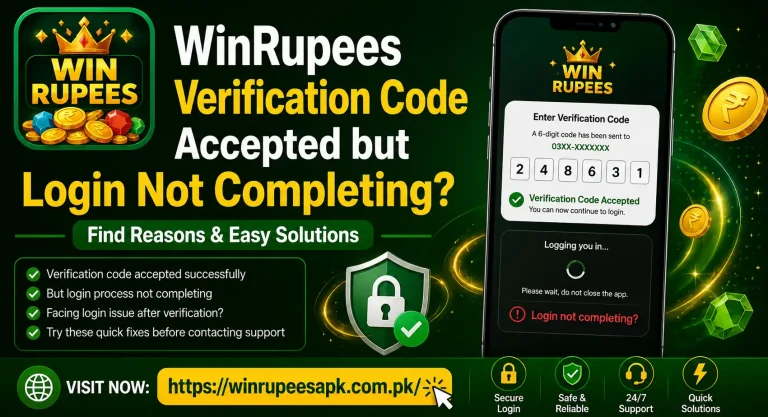
The Code Is Accepted but Login Does Not Complete
This is no longer an SMS-delivery issue. It may be an app session, account or connection problem. Close the app, use a stable network and try the browser version before asking for another OTP.
Mistakes That Can Make the Problem Worse
Avoid these common reactions:
- Pressing Resend OTP repeatedly
- Entering an older code after a newer request
- Changing the registered number format on every attempt
- Reinstalling before saving account details
- Creating a second account with another SIM
- Giving an OTP to someone offering a “manual verification” service
- Paying a fee to unlock or deliver an OTP
- Sharing a full-screen recording that exposes SMS messages
- Using a modified APK that promises to bypass verification
No tool can safely generate or predict a valid OTP. A code-bypass APK or website is a security risk, not a genuine solution.
When to Contact the Mobile Operator
Contact your network provider when normal SMS messages are also delayed or missing, the SIM shows no service, or incoming messages stopped after a SIM replacement or port.
Tell the operator that you are not receiving automated verification SMS. They can check whether the SIM is active and whether there is a network-level restriction. Do not give the operator your Win Rupees password, and do not ask them to read an OTP aloud to another person.
When to Contact Win Rupees Support
Contact Win Rupees support when the registered number is correct, normal SMS works, the resend timer has finished, spam folders are clear and one fresh request still produces no code.
Use the support option shown inside the app or on the website you normally use. Avoid random WhatsApp, Facebook or Telegram accounts that appear in comments or search results.
Include:
- Masked registered number, such as 03XX***1234
- Win Rupees user ID, if available
- Purpose of the OTP: registration, login or password reset
- Date and approximate time of the request
- Phone model and Android version
- Mobile network name
- Whether normal SMS messages are arriving
- Screenshot of the error or resend timer
- Checks already attempted
Do not include your password, OTP, wallet PIN, bank PIN, card CVV or recovery code.
Support Message Template
Hello, I am not receiving the Win Rupees OTP for [login/registration/password reset]. My masked registered number is [03XX***1234], and the request was made at approximately [time and date]. Normal SMS messages [are/are not] arriving. I checked the number, SIM signal, Spam & blocked folder, automatic date and time, and waited for the resend timer. Please check the OTP request status. My user ID is [masked ID if available].
Keep a screenshot of the conversation and any ticket reference. Support may confirm whether an OTP request reached the system, but they should not ask you to send the code back to them.
Safe Order for Requesting One New Code
Follow this sequence after the first OTP fails to arrive:
- Check the masked phone number.
- Confirm that the correct SIM is enabled and has signal.
- Wait for the current countdown to end.
- Open the SMS inbox and Spam & blocked folder.
- Refresh the signal with Airplane mode or restart the phone.
- Enable automatic date, time and time zone.
- Use a stable internet connection in Win Rupees.
- Return to the correct verification screen.
- Press Resend OTP once.
- Use only the newest message for that session.
If the second organised attempt also fails, stop. More requests are unlikely to identify the cause and may trigger a temporary limit.
FAQS Win Rupees OTP Not Received
Final Note Win Rupees OTP Not Received
When a Win Rupees OTP is not received, one careful resend is better than ten quick requests. Verify the number and SIM, inspect filtered messages, correct the phone clock and test normal SMS delivery. If those checks pass, report the failed request with clear evidence instead of sharing private codes.
Win Rupees and other real-money gaming platforms involve financial risk. Use them only if you are 18 or older, follow the rules in your location, set spending limits and never chase losses. An OTP confirms access to a number; it does not guarantee that a platform or transaction is risk-free.